Windows app · Free edition and one-time licenses
PicPrep

Windows app, free edition available

Get your imagesready for the web.

Rename, crop, compress, convert to WebP and resize in one Windows app. Your images are processed on your own PC.

v1.2.1 for Windows 11 (x64), 118.8 MB. English and Japanese. No account needed to try.

  1. mountain-sunrise.jpg2.8 MBtop-hero.webp120.4 KB−95.8%
  2. ocean-sunset.jpg2.9 MBsummer-campaign-02.webp265.1 KB−91%
  3. forest-lake.png14.1 MBsummer-campaign-03.webp252 KB−98.3%
  4. city-night.jpg2.9 MBsummer-campaign-04.webp270.3 KB−90.8%
Actual results from sample images converted to WebP (quality 80) and resized. Savings vary by image and settings.

From original images to web-ready files, in one window

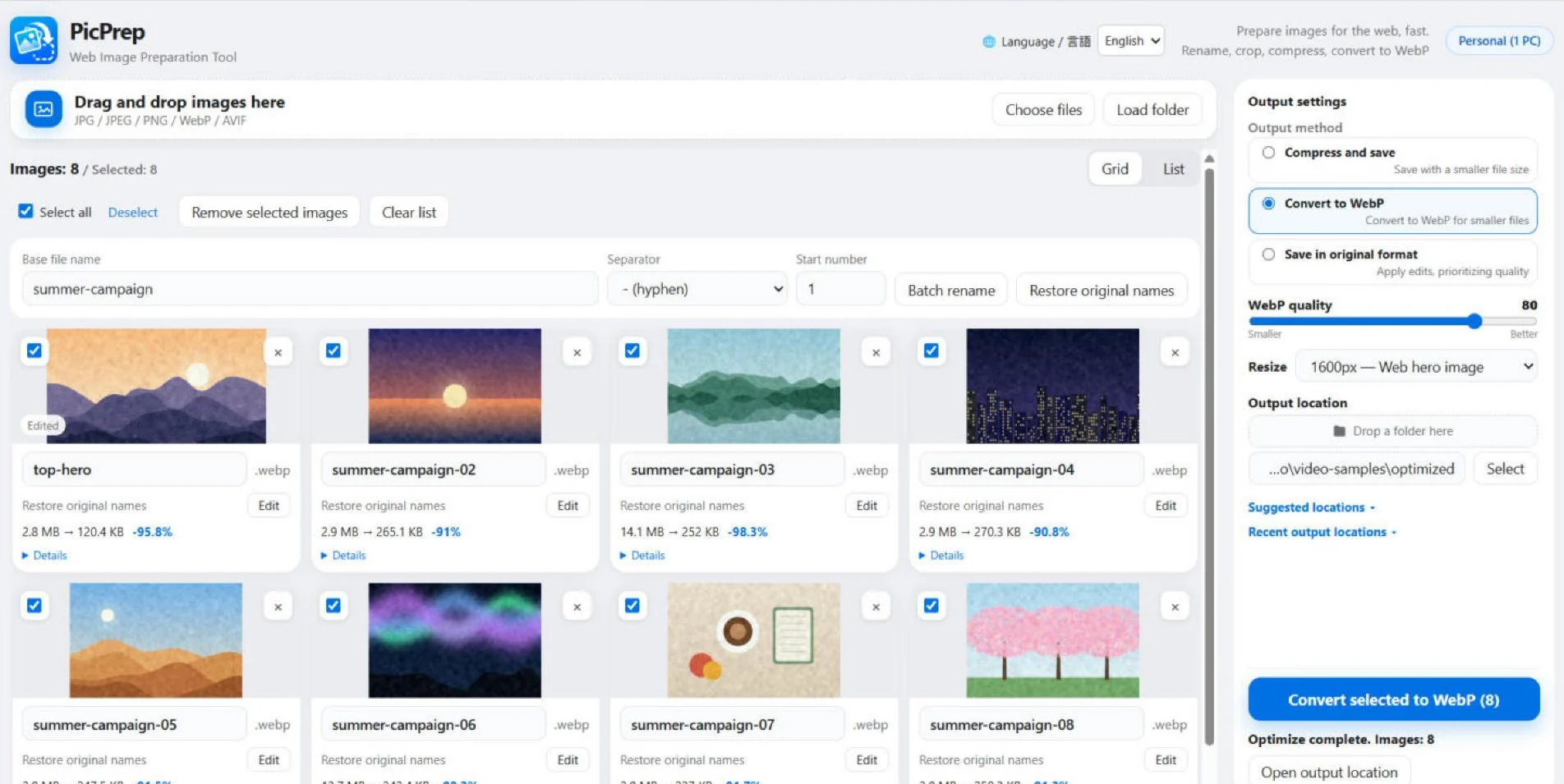
Add images, set names and output, then save. Your images are on the left; save settings are on the right.

PicPrep in English: eight images on the left, output settings on the right
  1. Rename in one goGive selected images a shared name with sequential numbers.
  2. See the savingsEach card shows the original size, saved size and reduction.
  3. Format, size and destinationChoose compression, WebP, resizing and the output folder on the right.

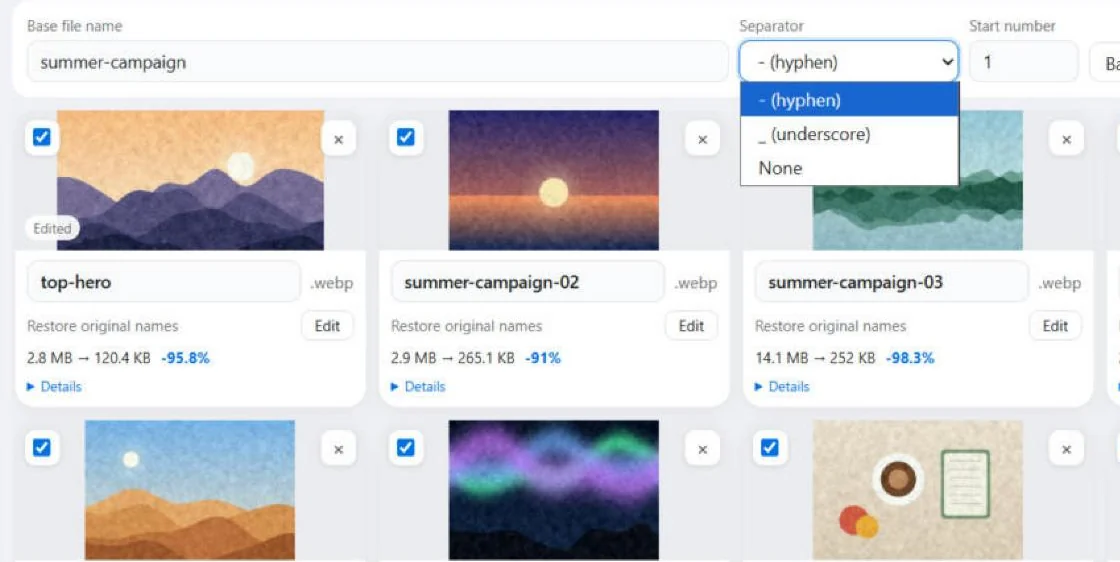
Consistent file names, numbered for you

Enter a base file name and choose Batch rename to get summer-campaign-01, -02 and so on.

  • Separator: hyphen, underscore or none. Set the start number too
  • Rename a single image by editing its name
  • Restore original names at any time
Base file name and separator options for batch renaming

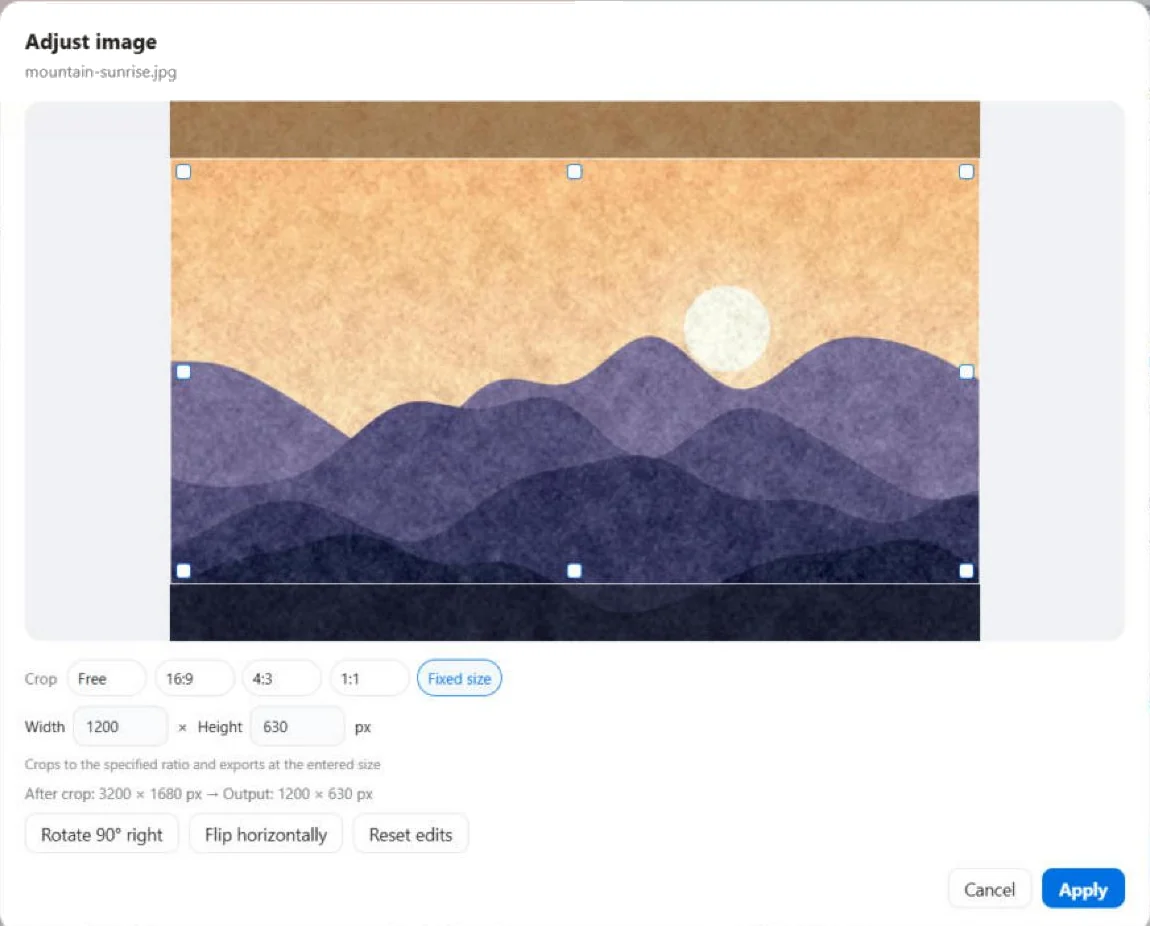
Crop and straighten without leaving the app

Choose Edit on any image to crop, rotate or flip it. The original file stays as it is; edits are applied when you save.

  • Free crop, or fixed 16:9, 4:3 and 1:1 ratios
  • Fixed size: enter the exact output size, such as 1200 × 630 px for social images
  • Rotate 90° right and flip horizontally
Adjust image dialog with a fixed size of 1200 by 630 pixels

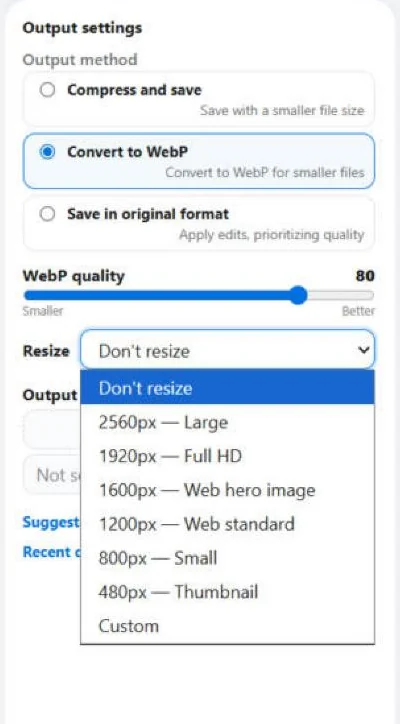
Compress, convert to WebP, resize

Pick one of three output methods. Resizing uses presets for common web sizes.

  • Compress and save: keep the format, reduce the size (JPEG quality slider; PNG smaller size or best quality)
  • Convert to WebP: save everything as WebP
  • Save in original format: apply edits, prioritizing quality
  • Resize the long edge to 2560, 1920, 1600, 1200, 800 or 480 px, or a custom size. Images are never enlarged
Output settings with Convert to WebP selected and resize presets open

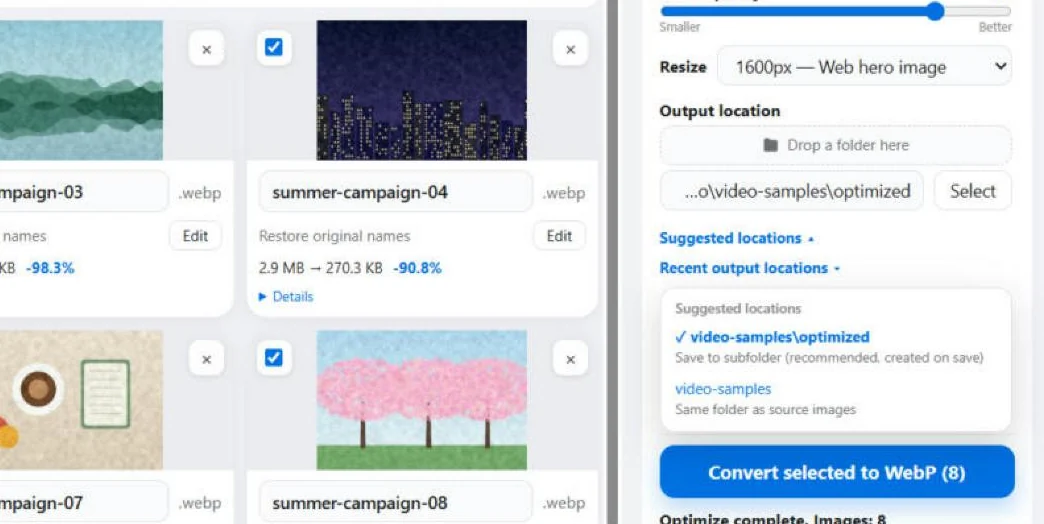
Originals stay untouched

PicPrep saves new files and never overwrites your original images.

  • Pick a suggested location. The optimized subfolder is created when you save
  • If a file with the same name exists, the new name is adjusted automatically
  • Open output location to check the results right away
Suggested output locations, including an optimized subfolder

Three steps

Watch the 81-second video guide on real screens.

  1. Add your imagesDrag and drop, or use Choose files or Load folder. JPG, JPEG, PNG, WebP and AVIF still images are supported.
  2. Choose the outputSet names, crop, size, format and quality. Select a destination folder.
  3. Save new filesFree users can save five at a time. A paid license removes that batch limit.
Video guide1:21, no audio (captions)

Built to keep your images safe

  • Processed on your PC

    Image processing happens on your PC. Licensing, payment and support use online services; see the privacy policy for details.

  • Originals are not overwritten

    Results are saved as new files in the folder you choose. Keep backups of important images.

  • Name clashes handled

    If a file with the same name already exists in the destination, PicPrep adjusts the new file name instead of overwriting.

Input formats
  • JPG
  • JPEG
  • PNG
  • WebP
  • AVIF
AVIF input is exported as JPEG or WebP. HEIC, RAW, TIFF and animated images are not supported.
Output formats
  • WebP
  • JPEG
  • PNG
System
Windows 11 (x64)Windows 10, Windows on ARM, macOS and Linux are outside the tested scope. Try the free app on your PC before buying.
Languages
English and JapaneseSwitch from “🌐 Language / 言語” in the app.

Try every feature. Upgrade for bigger batches.

One-time purchase for PicPrep v1.x on Windows. No subscription or automatic renewal. Business use allowed.

Free

¥0

All features, up to 5 images per save. Unlimited loading, editing and previewing. No daily limit or trial expiry.

Download free

Personal

¥980JPY, tax included

Activate 1 PC at a time. No product limit on images per save. For personal and business use.

Choose Personal

Multi

¥1,980JPY, tax included

Activate up to 3 PCs at a time, for the purchaser or the same company. No product limit on images per save.

Choose Multi

A 7-day full refund. Request a full refund within 7 days of purchase, for any reason. The refunded license will be deactivated.

Future major versions (v2+) and a Mac edition are not included. Initial activation and periodic checks require internet access. Try the free app on your PC before buying.

Checkout, purchase confirmation and purchase license emails support English. The support form is available in Japanese and English. Some Stripe product details may still appear in Japanese. Prices are charged in Japanese yen (JPY).

A few things to know

How do I switch to English?

Use “🌐 Language / 言語” in the app and choose English. Your selection is remembered after restarting. A saved selection takes priority; on a first launch, the installer language is used before the Windows language.

Do I need a separate paid app?

No. Download the same app, then activate it with your purchased license key. Free mode allows five images per save; a valid paid license removes that limit.

Are images uploaded?

Image processing happens on your PC. Licensing, payment and support use online services. See the privacy policy for details.

Which systems and image formats are supported?

Tested on Windows 11 (x64). Windows 10, Windows on ARM, macOS and Linux are outside the tested scope. Inputs: JPG, JPEG, PNG, WebP and AVIF still images. AVIF input is exported as JPEG or WebP. HEIC, RAW, TIFF and animated images are not supported.

Can I use a license offline or move to another PC?

Online activation and periodic checks are required. The next check is normally scheduled about 7 days after a successful one. Valid cached licensing has a grace period of up to 45 days from the last successful check when offline. Deactivate the old PC before moving; see the terms.

Windows SmartScreen shows a warning. What should I do?

A warning may appear for an app Windows does not yet recognize. Only continue if you downloaded from picprep.app and the publisher is NISHIKI LLC. Choose “More info”, check the app and publisher, and then “Run anyway” if those details match. If the publisher is unknown or different, or antivirus reports a threat, stop and contact us. Do not turn off Windows protection.

Are payment and support available in English?

Checkout, purchase confirmation and purchase license emails support English. The contact form has Japanese and English labels. Some Stripe product details may also appear in Japanese. The contact guide explains the form fields in English.

Start with five. Get the whole workflow.

Install and launch. Try the free edition on your PC first.

PicPrep for Windows

Web Image Preparation Tool

Version
1.2.1
File size
118.8 MB
System
Windows 11 (x64)
Released
October 30, 2026
Download PicPrep v1.2.1

Signed by NISHIKI LLC. If Windows shows a security warning, see this FAQ.

PicPrep in 26 seconds (no audio)